
How to create Number Sequences?
Number Sequence in D365 F&O is defined as a framework that is used to generate uniquely identifiable numbers for master data and transactional ledgers (Sales orders, purchase orders, customer numbers, vendor invoices, general vouchers). Follow the steps below to create Number Sequences for your new Legal Entity.
Automatic creation
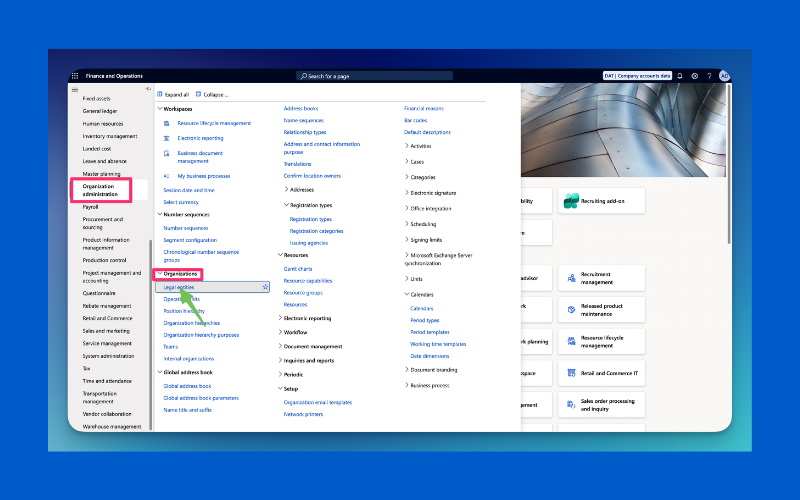
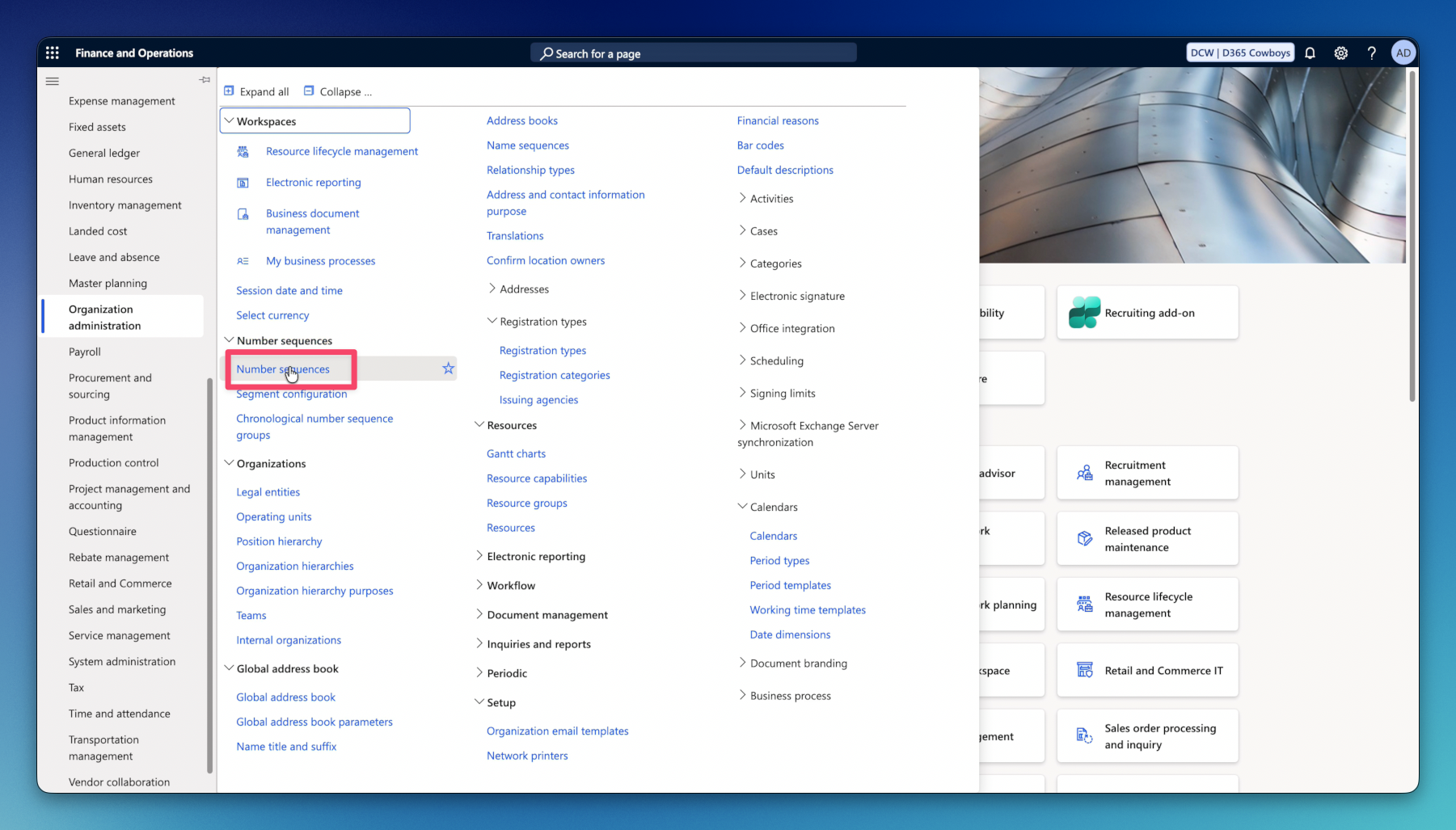
1.Go to Organization administration – Number Sequences – Number sequences.
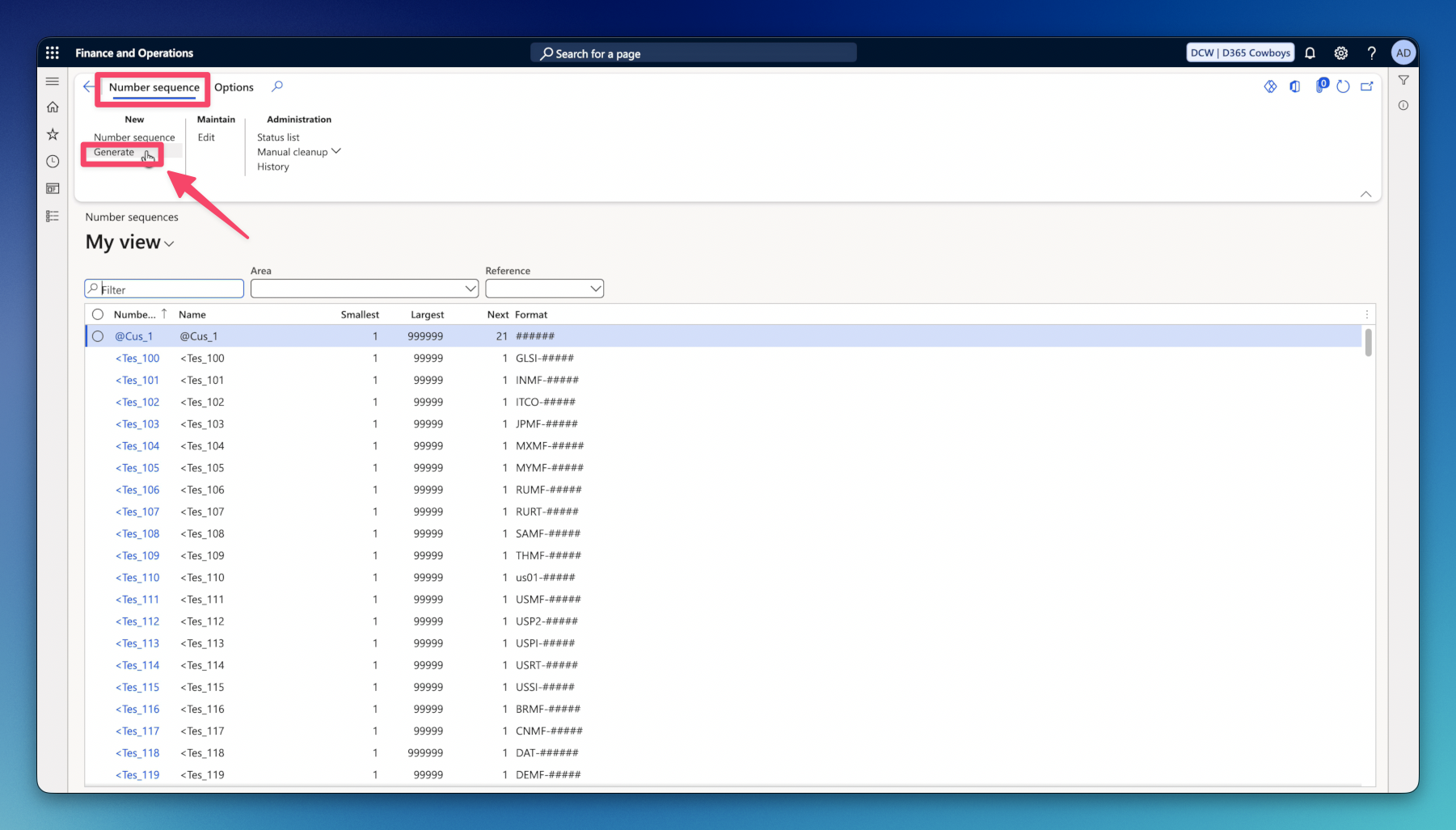
2. On the top ActionPane under the Number sequence tab, Click on Generate.
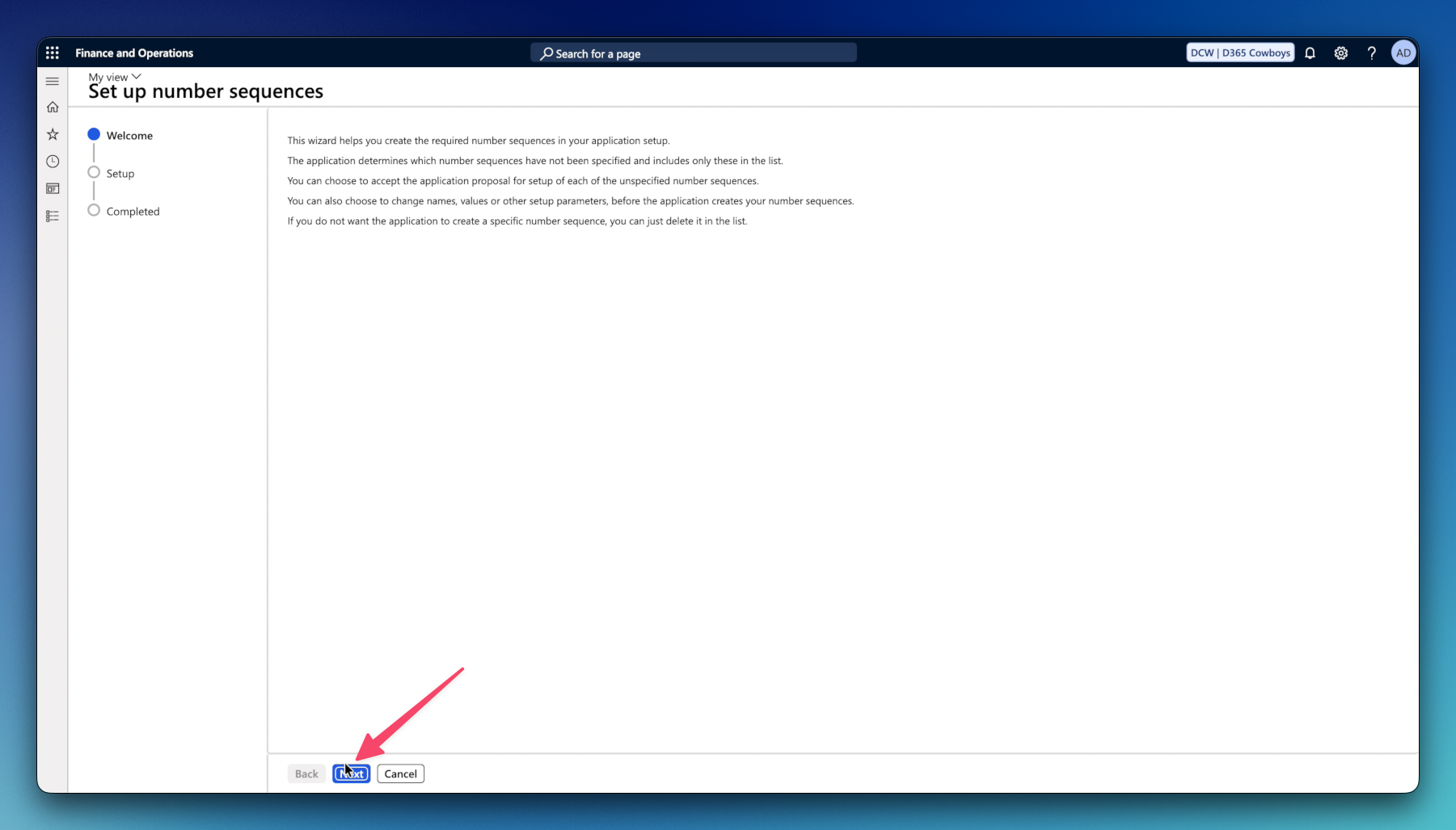
3. In the Number sequences wizard welcome window click on Next.
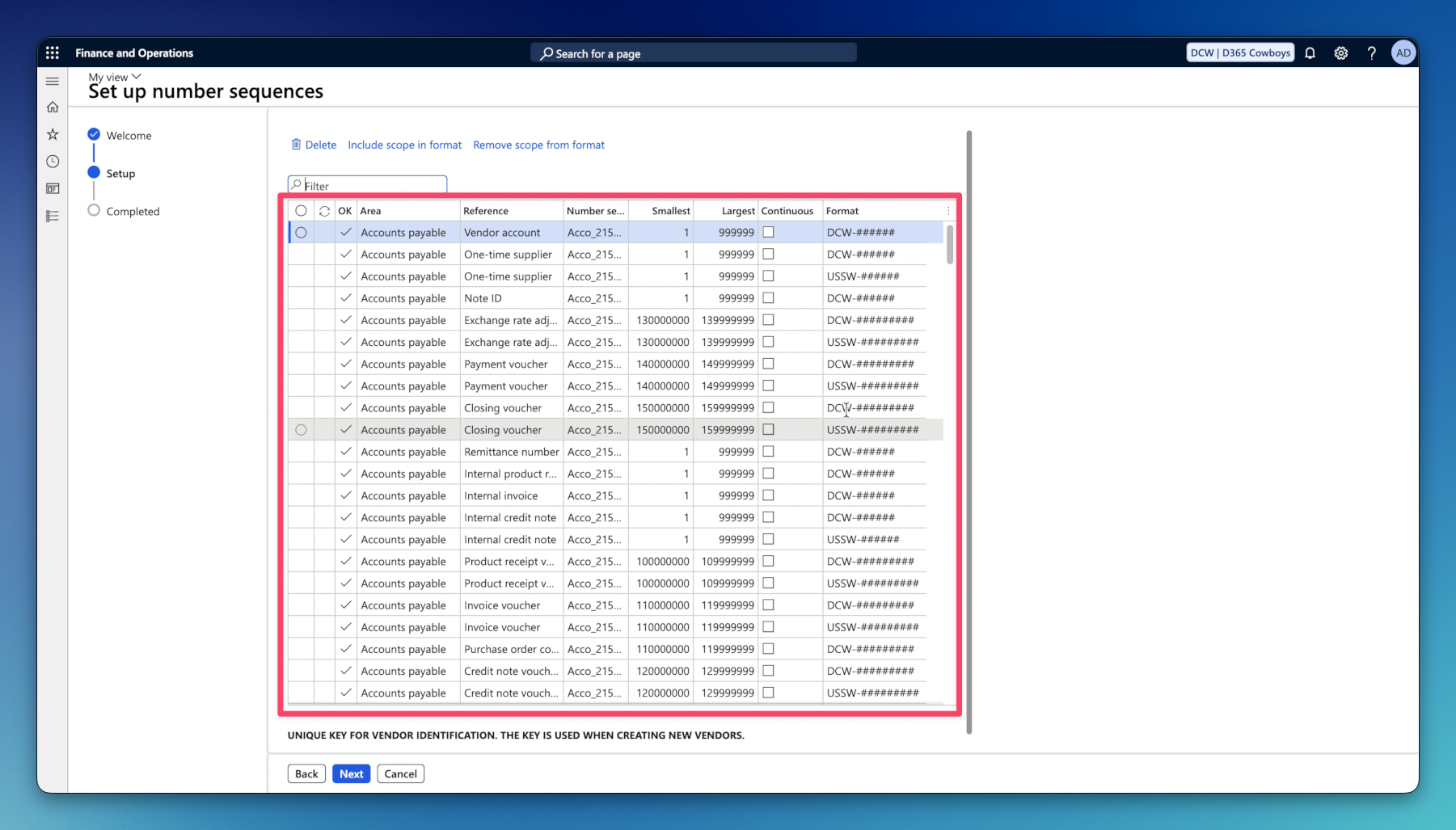
4. In the next step – Setup, you can see all Number sequences automatically created and assigned across all references in your Legal Entity.
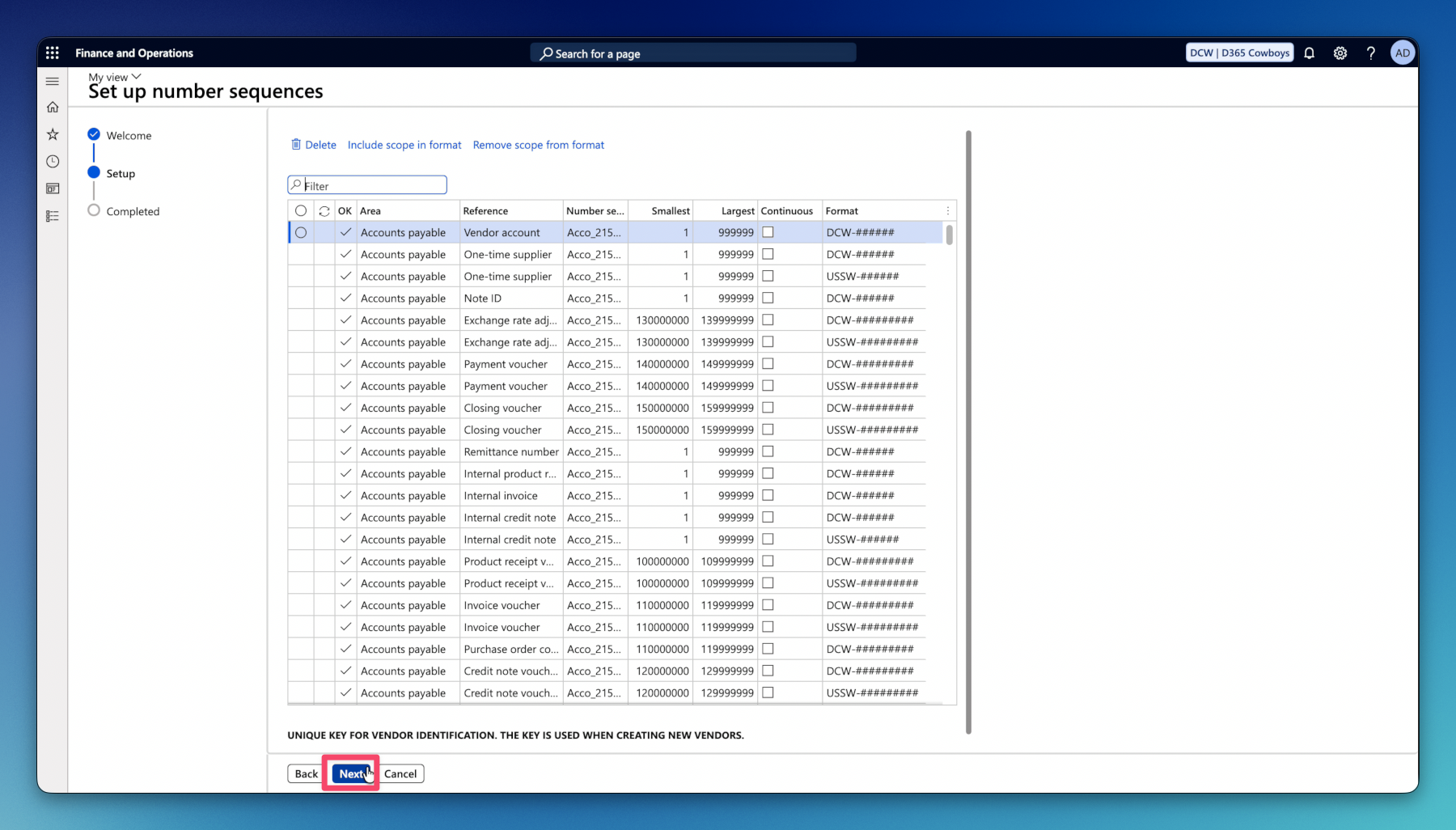
5. Click Next.
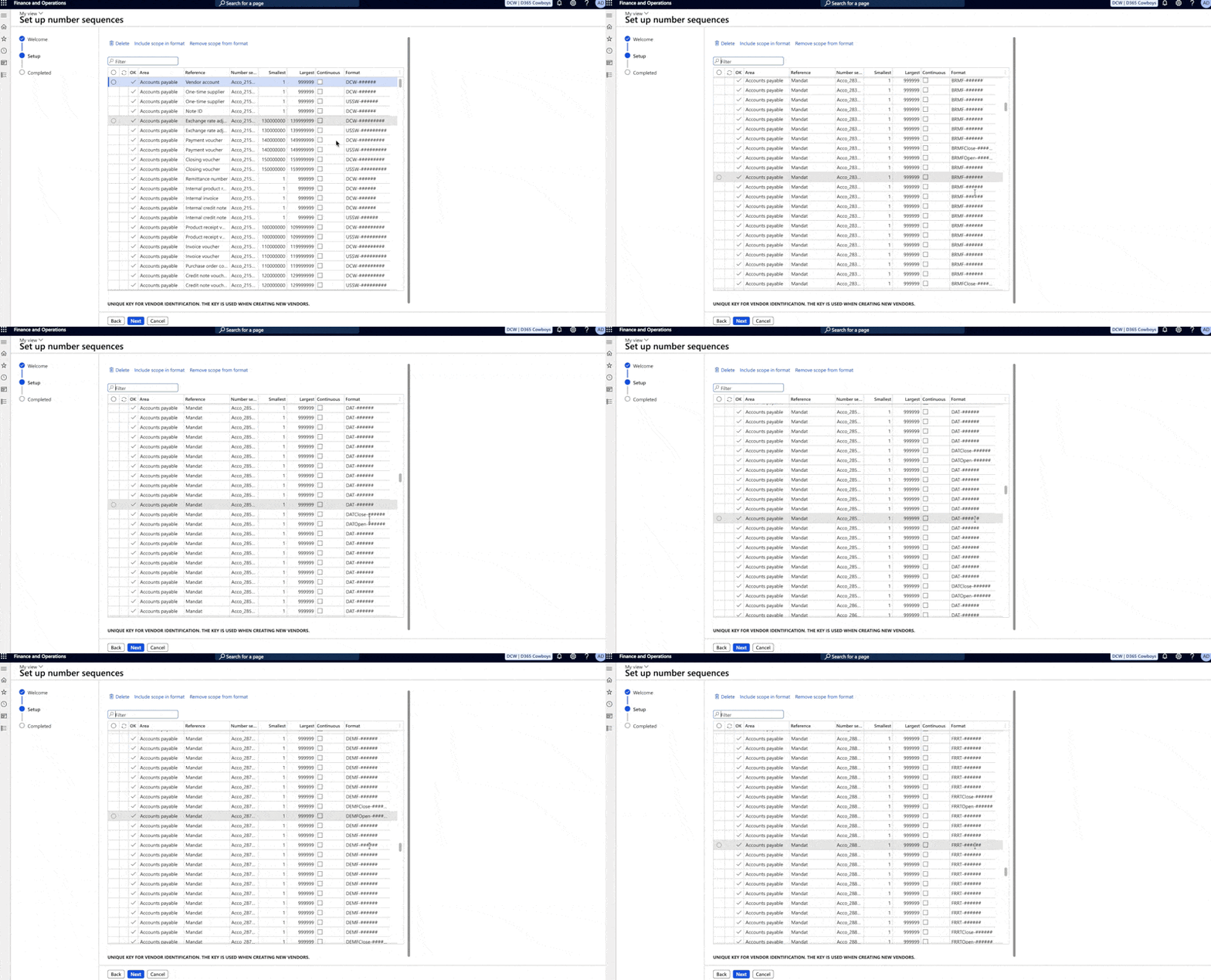
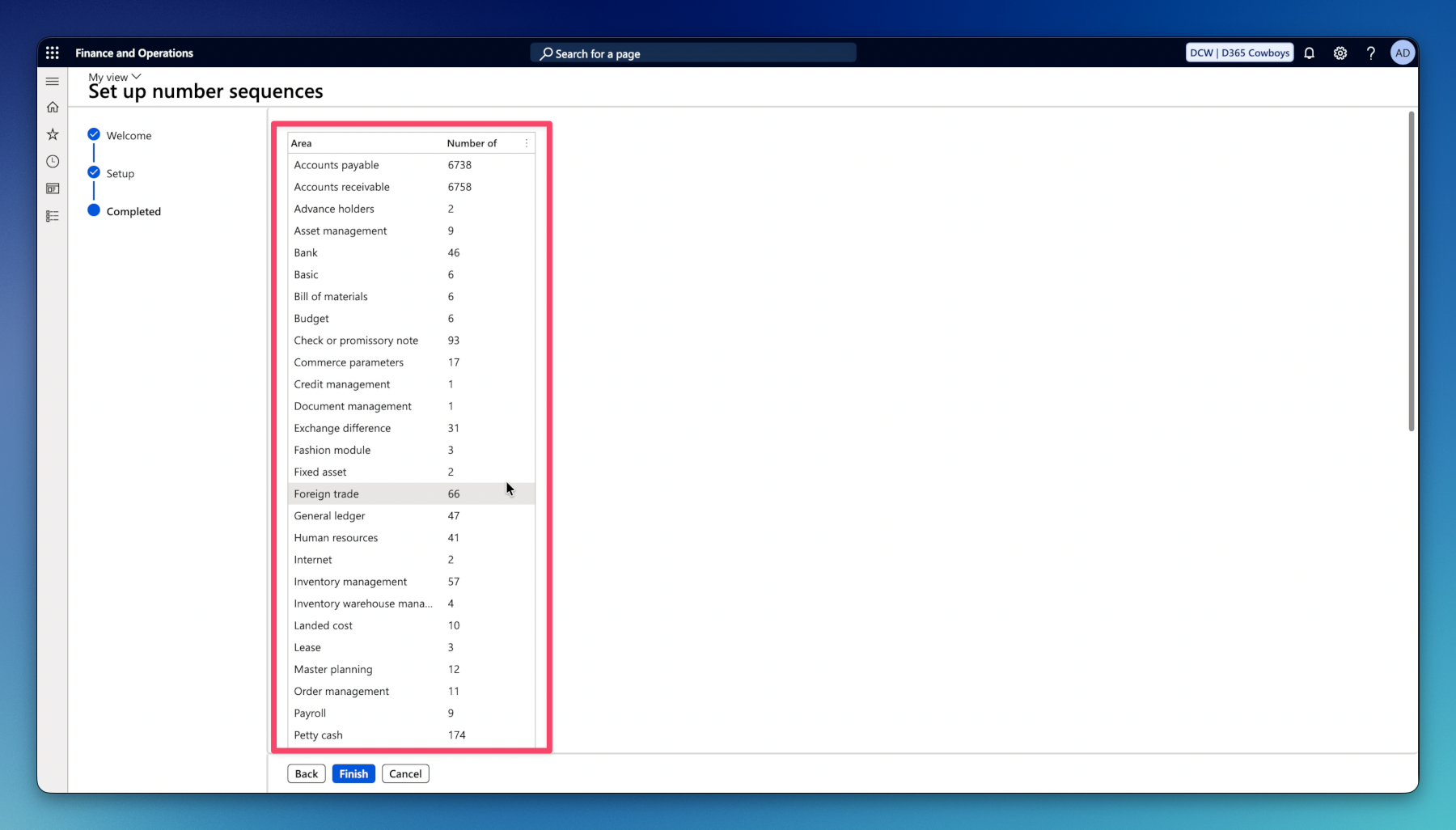
6. In the last step of the Number sequence wizard you will get a summary of all Number sequences created for each reference.
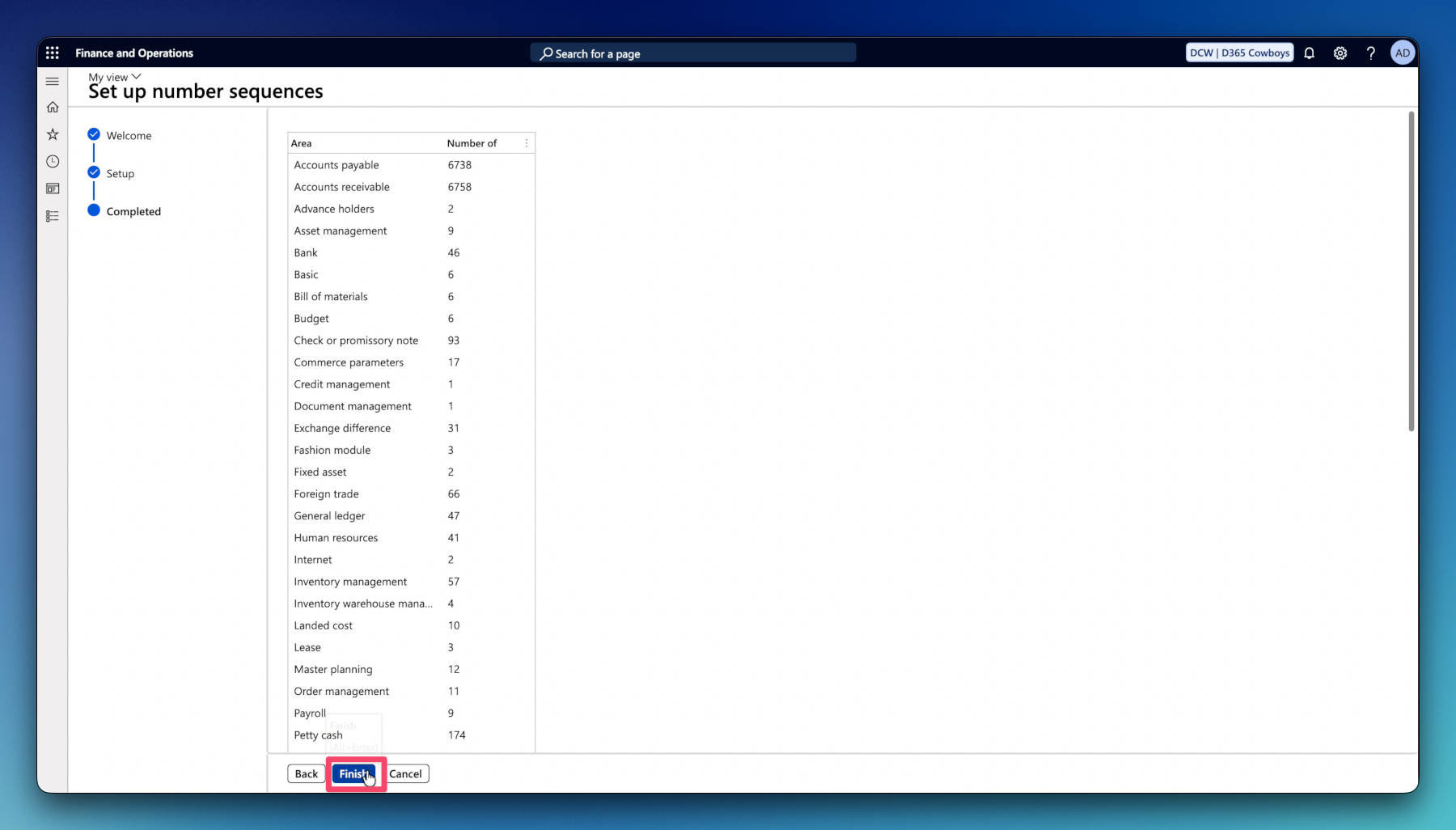
7. Click Finish.
Manual creation
1.Go to Organization administration – Number Sequences – Number sequences.
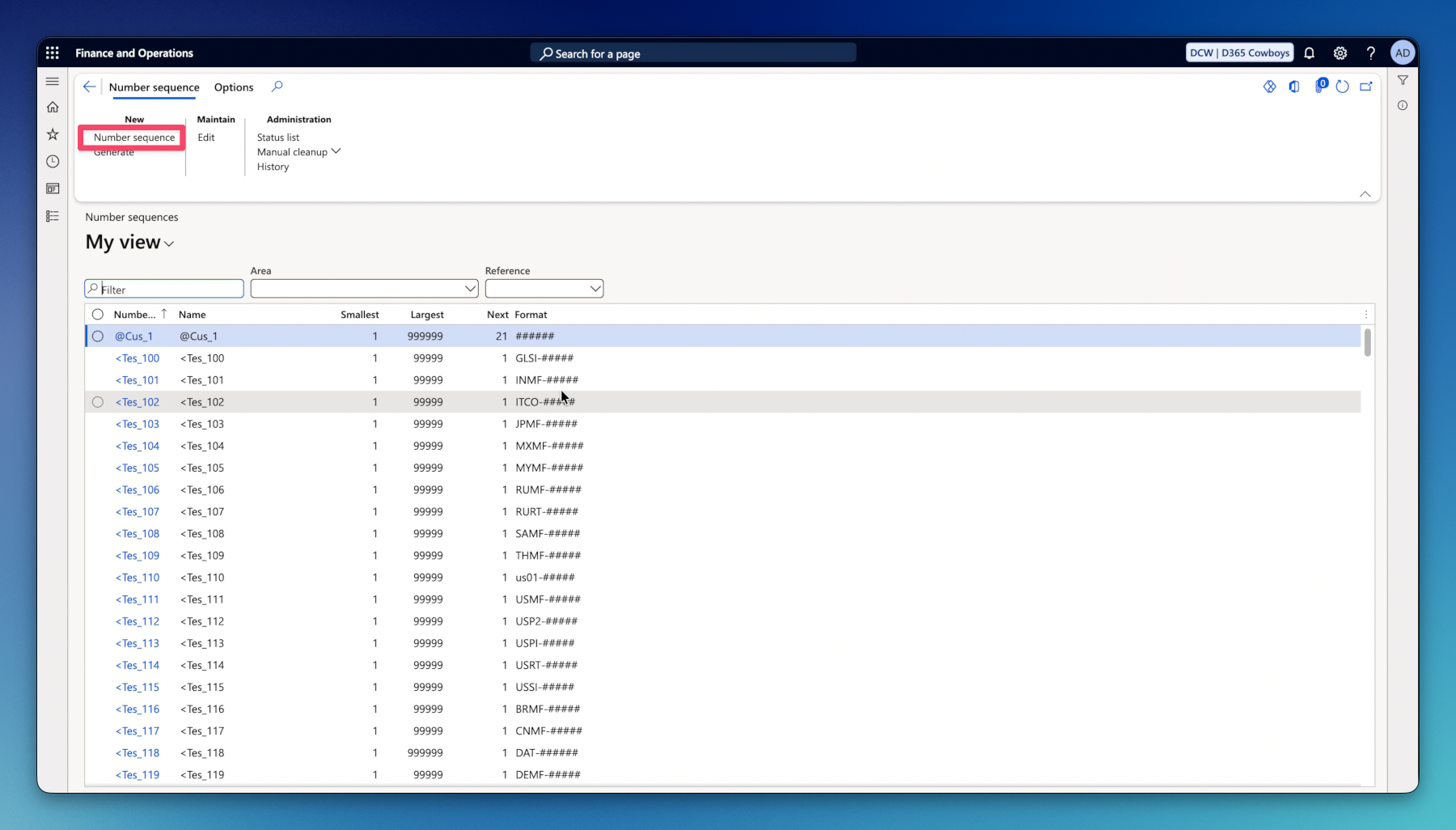
2. On the top ActionPane under the Number sequence tab, Click on Number sequence.
3. Under Identification FastTab enter Number sequence code.
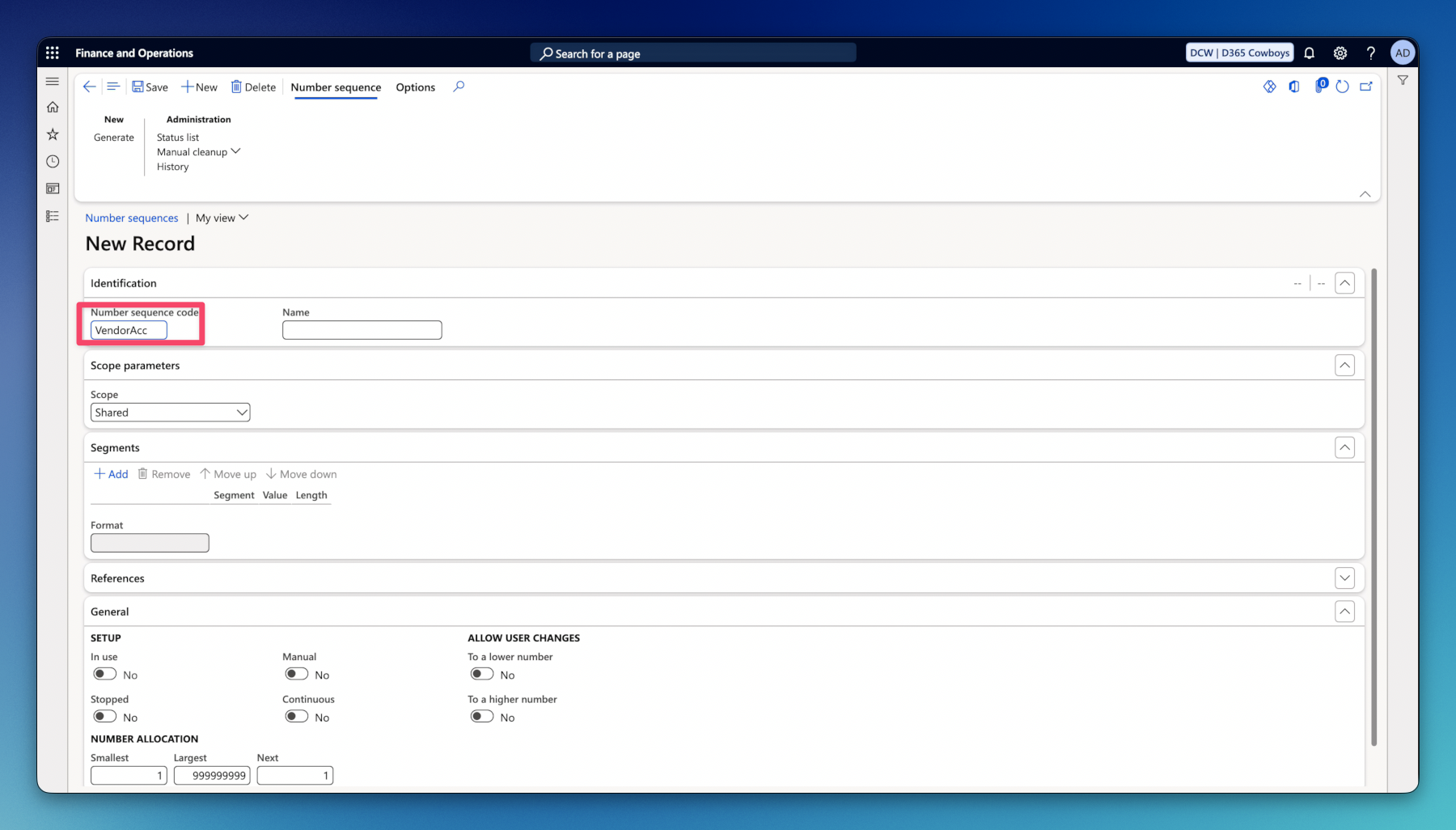
4. Under Identification FastTab enter Name.
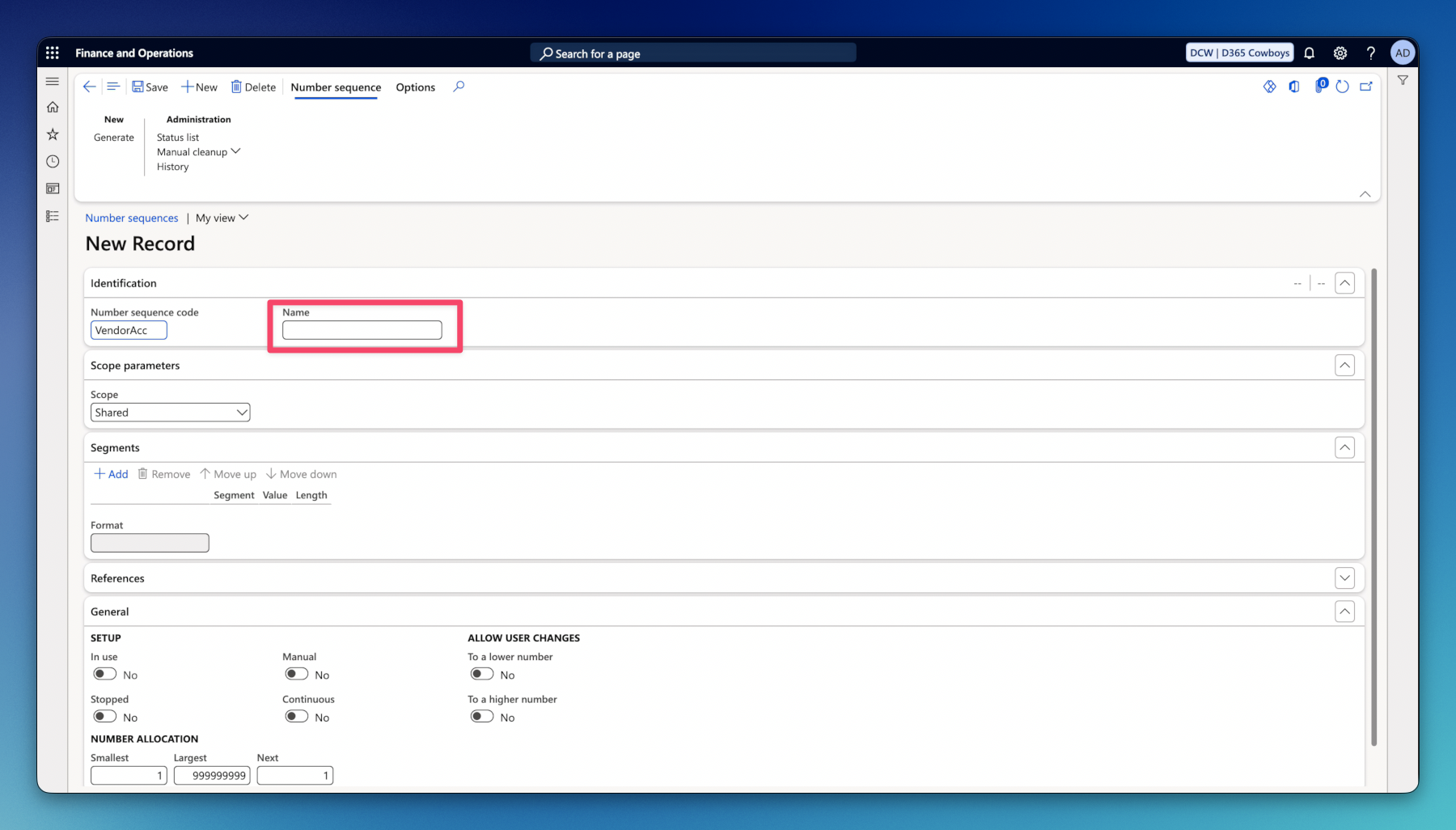
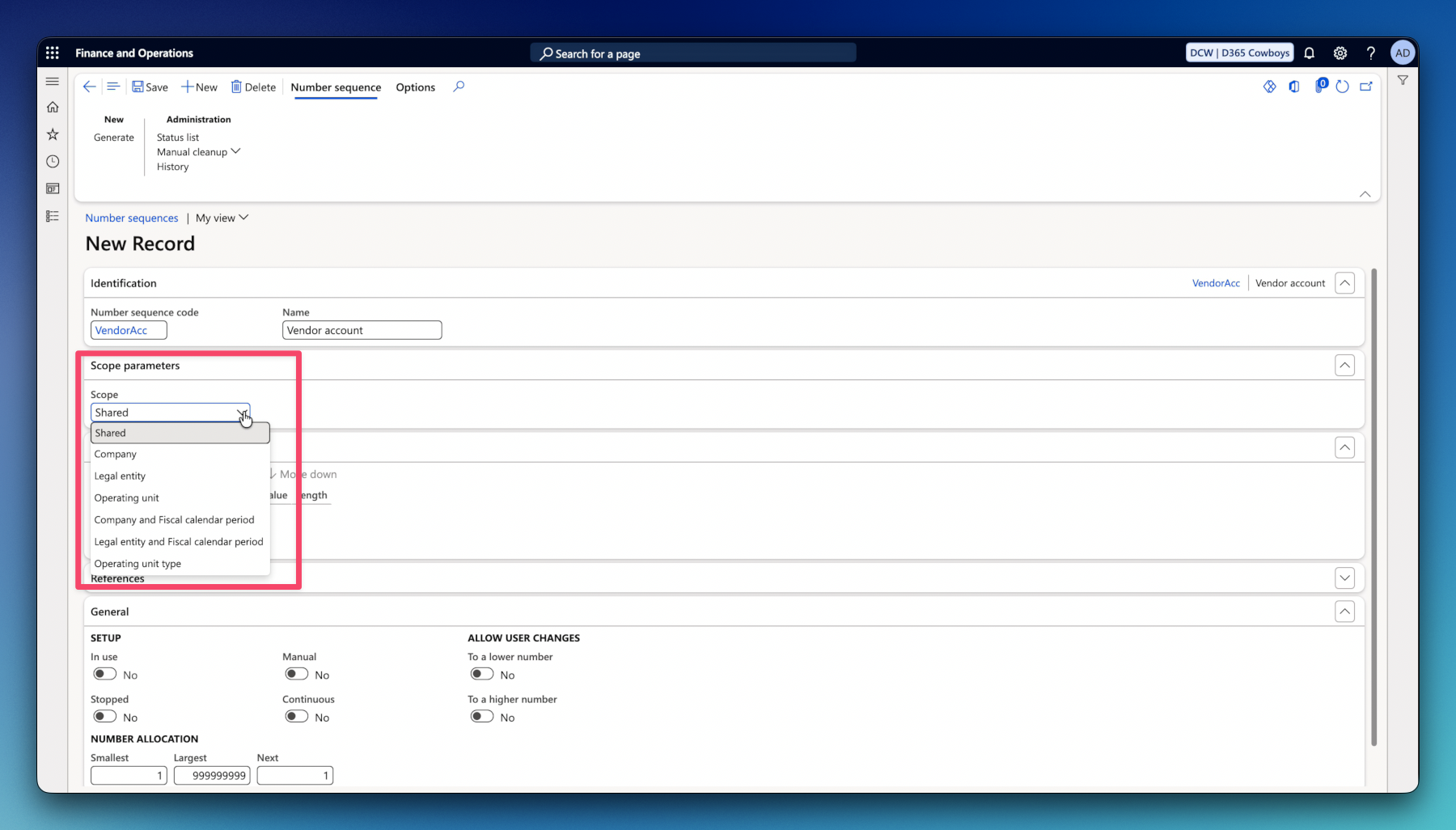
5. Under Scope parameters select the scope for the new number sequence.
- Shared – applied globally across the entire system regardless of legal entity or department. Used for system-wide master records such as Party IDs (Global Address Book) or Worker IDs.
- Company – generates numbers unique to a specific legal entity. The most common scope in D365 F&O, used for documents like Purchase Orders, Sales Orders, Customer Account IDs, and Vendor Account IDs.
- Legal Entity – scoped to the legal entity entity record (often used interchangeably with Company scope, but strictly tied to the Legal Entity party/organization record rather than the DataArea string).
- Operating unit – sequences are scoped to a specific internal organizational hierarchy unit. Used for internal departmental tracking or regional retail store operations.
- Company and Fiscal calendar period – generates sequences unique to a specific company and accounting period (e.g., fiscal year). Commonly used for General Ledger Voucher Numbers and Invoice Numbers to comply with statutory yearly resetting requirements.
- Legal entity and Fiscal calendar period – similar to Company & Fiscal calendar period, but references the LegalEntity record directly rather than the DataAreaId. Used for period-specific tax or statutory numbering.
- Operating unit type – applies across all operating units of a particular type (e.g., all Retail Stores or all Departments share the sequence rule pattern).
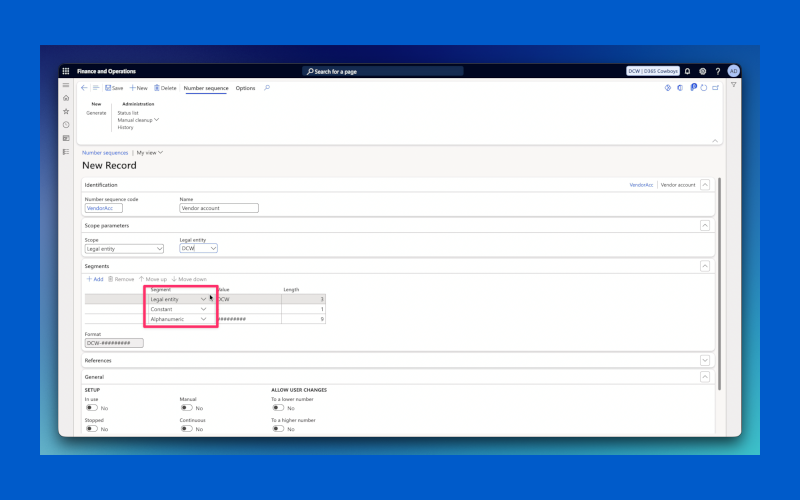
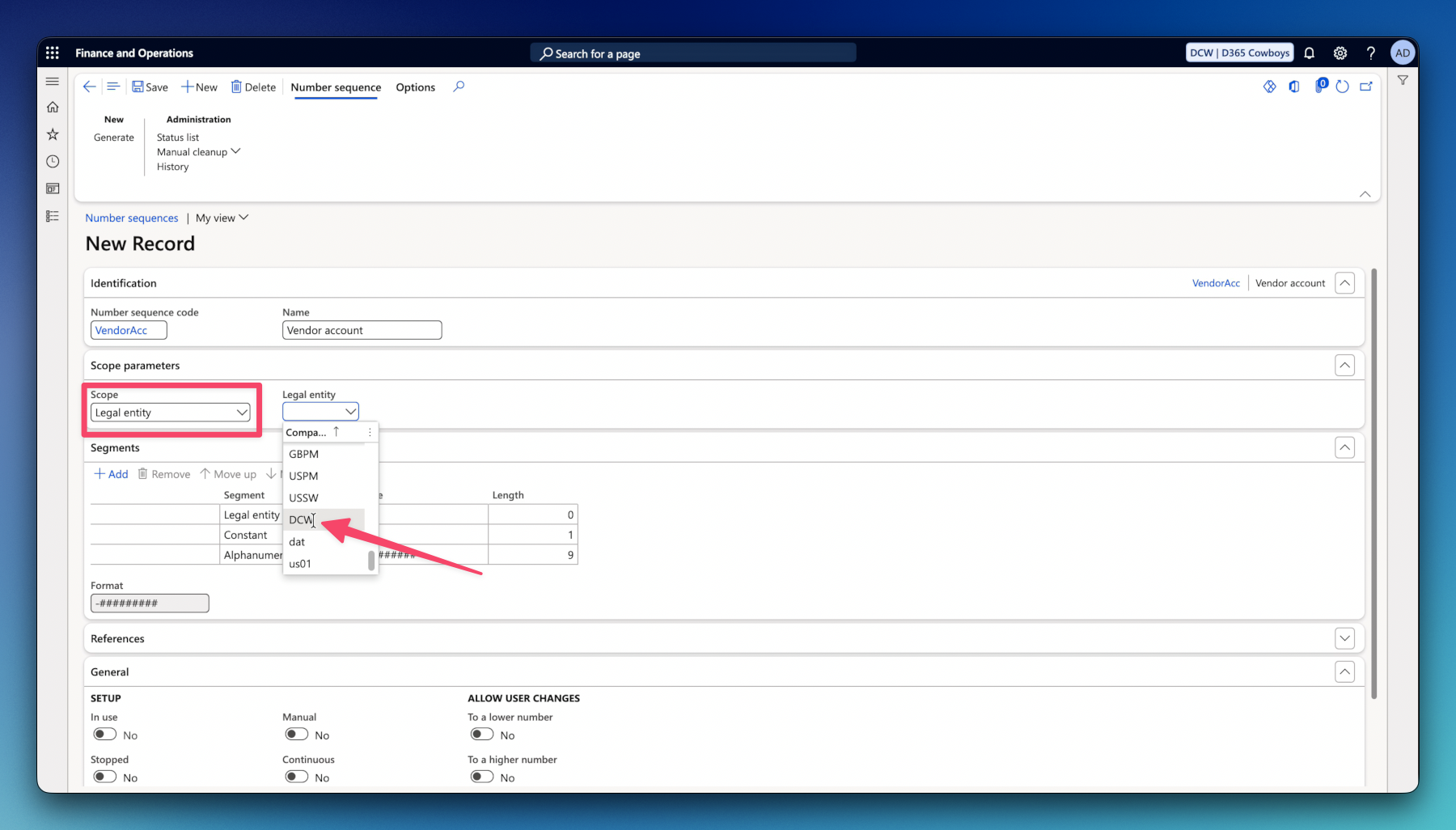
6. I selected the Legal Entity scope so the system asked me what Legal entity it is.
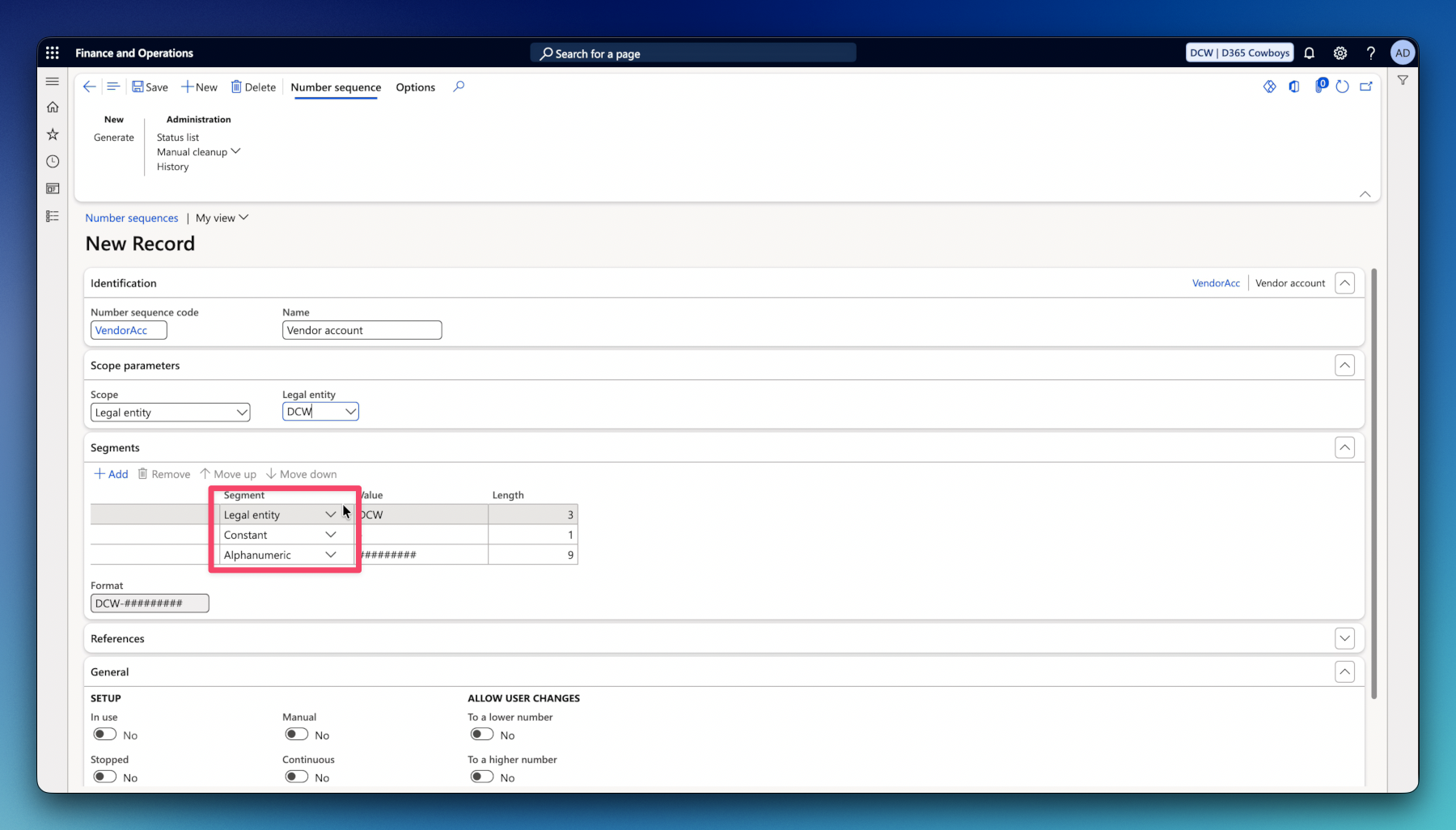
7. Go to Segments FastTab to decide how your number sequence is going to look like.
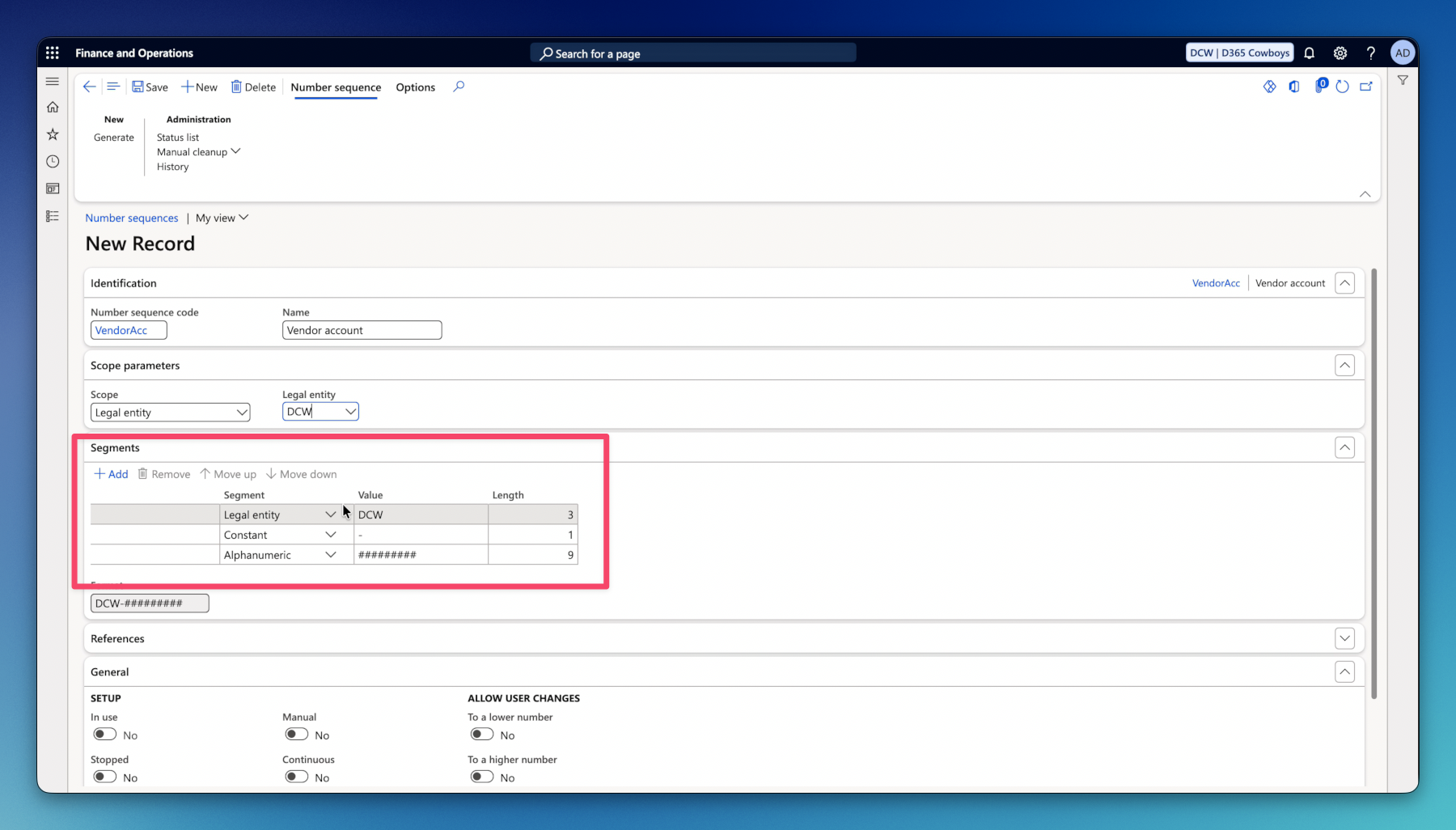
8. You can select out of three different segments:
- Company – holds value of your Company
- Constant – fixed characters that do not change from record to record. Used as prefixes, suffixes, or separators.
- Alphanumeric – generates incrementing numbers. The number of # characters determine the length and zero-padding. (At least one alphanumeric segment is mandatory).
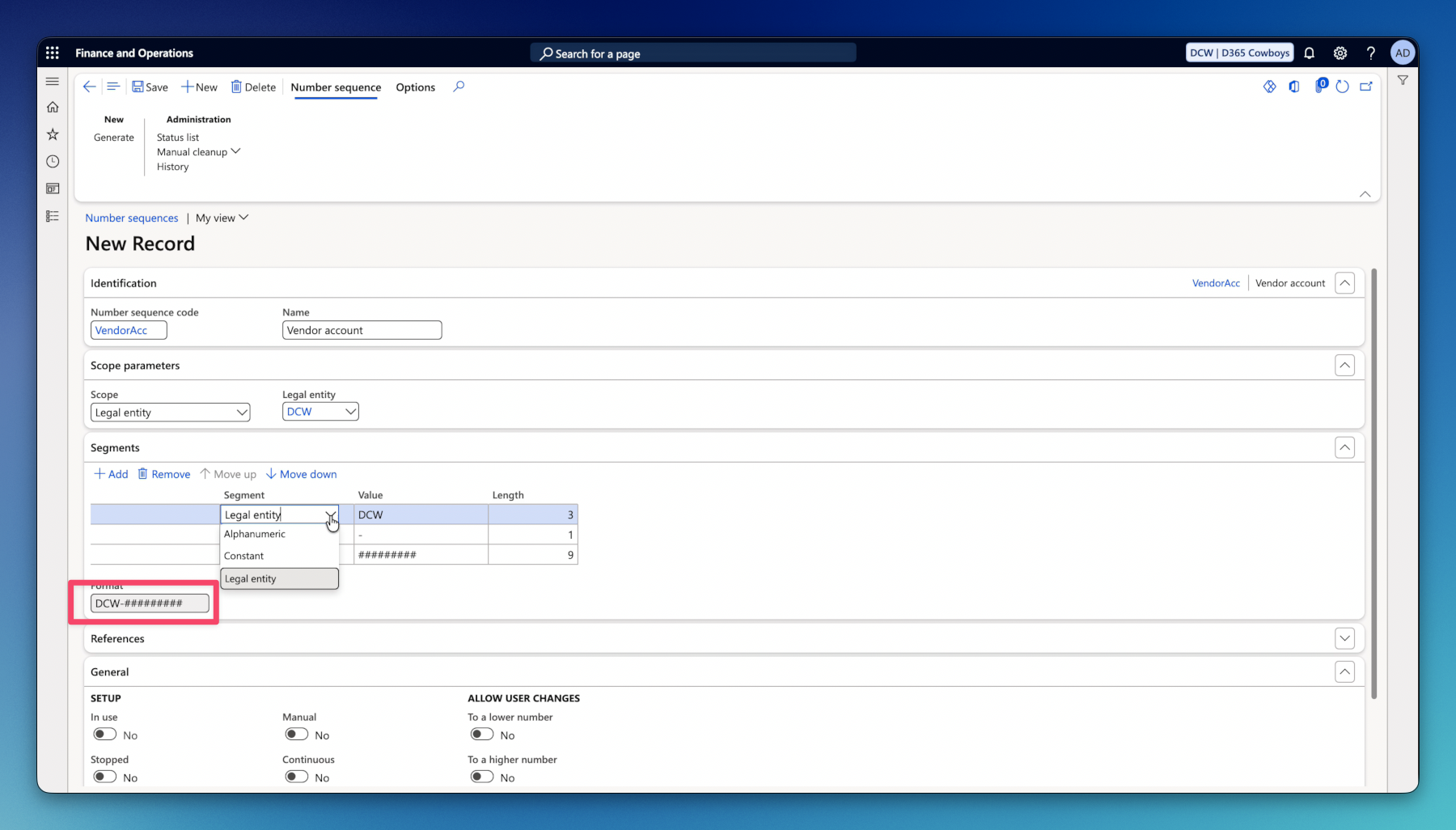
9. At the bottom of the section you can see the preview of your final number sequence format.
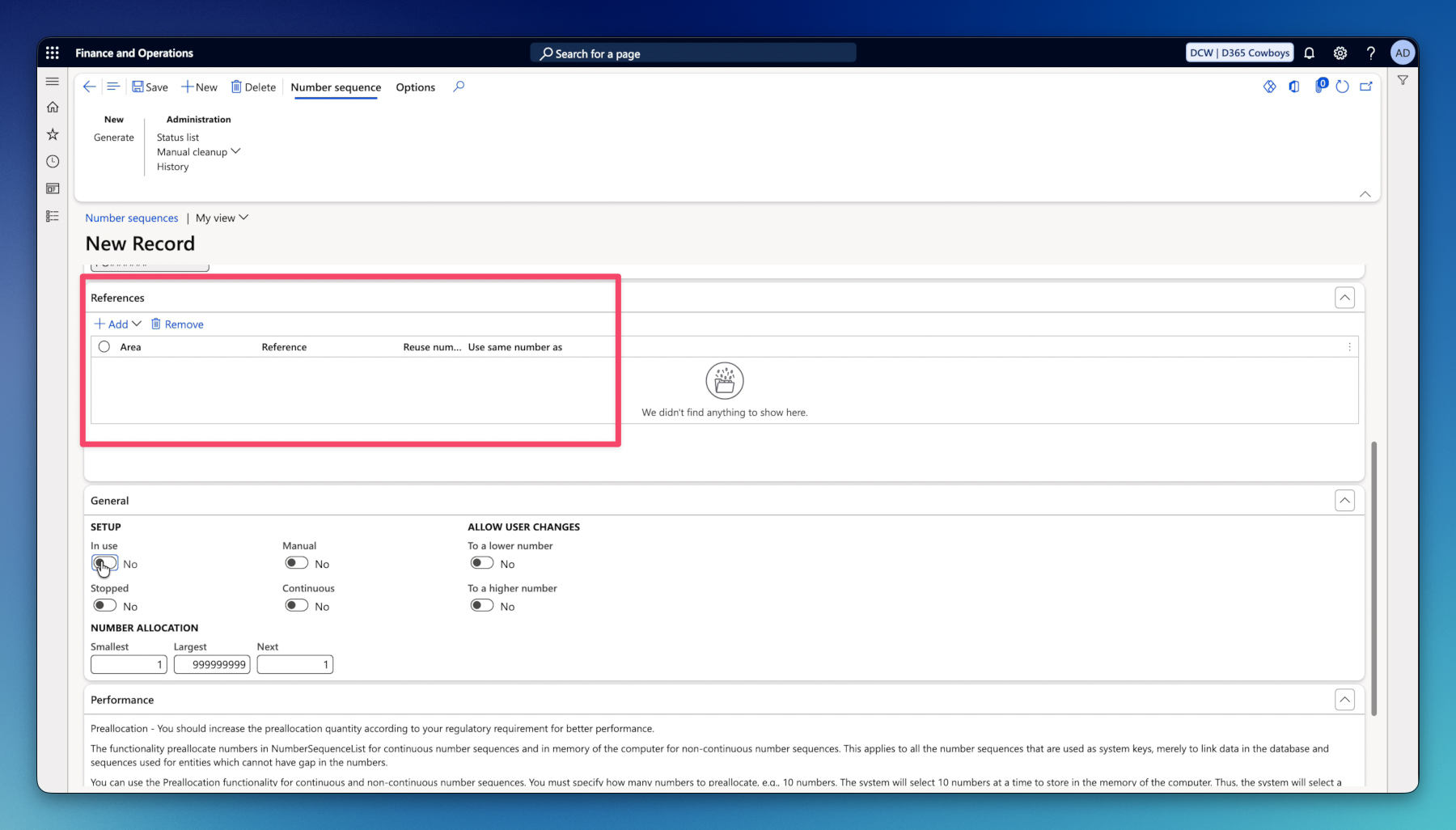
10. The next section, References, shows us where the number sequence is currently used.
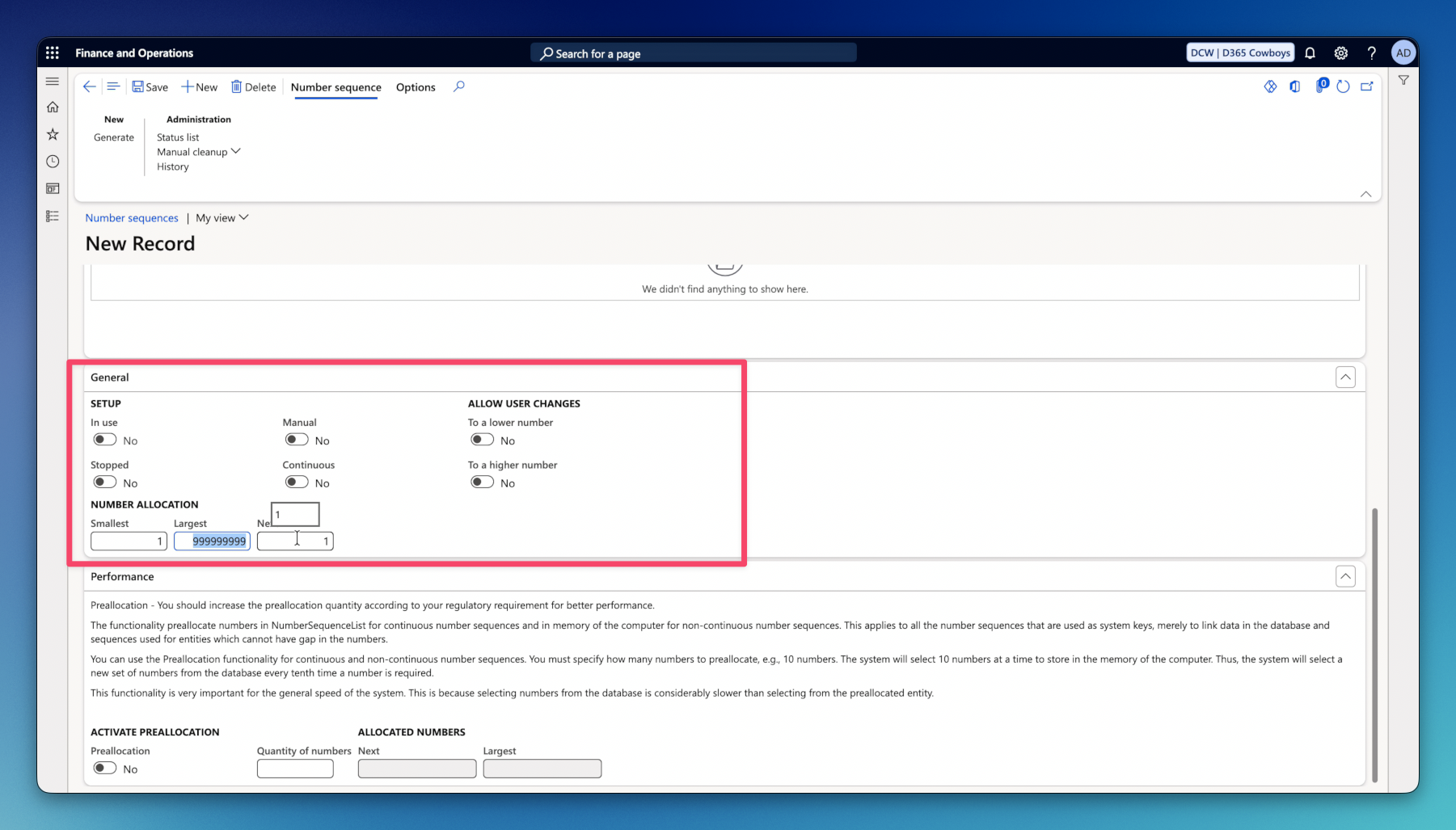
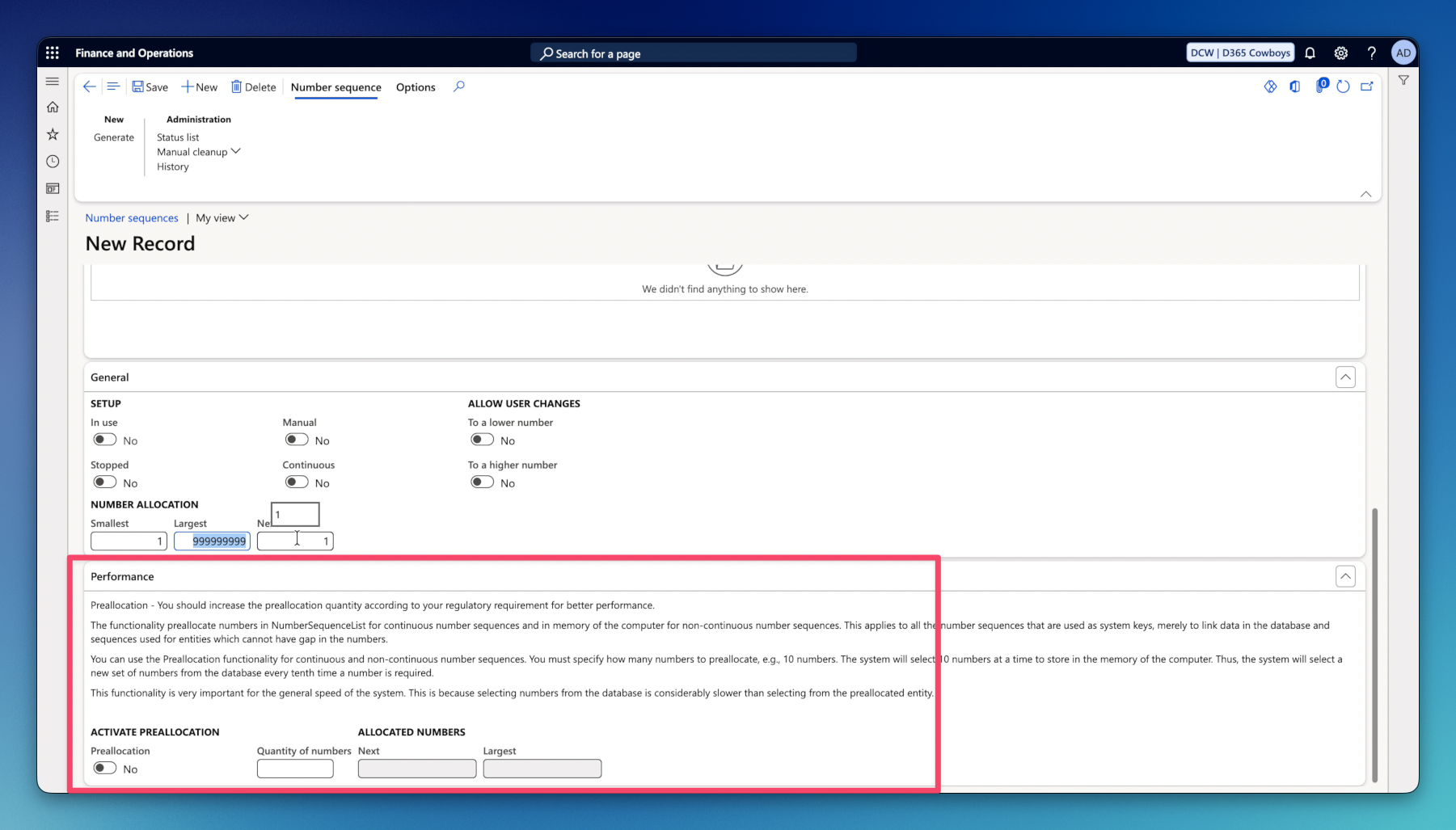
11. General FastTab defines the core numeric boundaries, continuous behavior, manual overrides, and preallocation rules.
- Continuous – determines whether numbers must be generated without any gaps.
- Yes – reclaims unused numbers (e.g., aborted transactions, deletions) into a status list and reissues them. Causes database table locking and impacts performance.
- No – standard sequential allocation. Unused numbers are skipped permanently, resulting in faster multi-threaded performance.
- Manual – controls whether users can enter their own custom record identifiers.
- To a lower number – allows changing the sequence to a number smaller than the current Next value. Only editable when Manual is enabled or during specific reconfiguration scenarios.
- To a higher number – allows advancing the Next value forward – enabled by default.
- In use – number sequence is in use.
- Stopped – prevents users or background processes from consuming new numbers. Useful during maintenance, fiscal year closures, or migrations to block new transactions.
- Smallest – defines the minimum integer for the sequence.
- Largest – defines the maximum integer for the sequence.
- Next – next number in the sequence.
12. The Performance Fasttab lets you set values that enable memory number caching (preallocation) – this dramatically reduces database trips on the NumberSequenceTable by pulling blocks of numbers into the AOS memory at a time.
- Preallocation – enable / disable number caching
- Quantity of numbers – defines how many numbers the AOS pulls into memory in a single database transaction. For example, if set to 100, the system queries the database once every 100 generated numbers instead of 100 times.
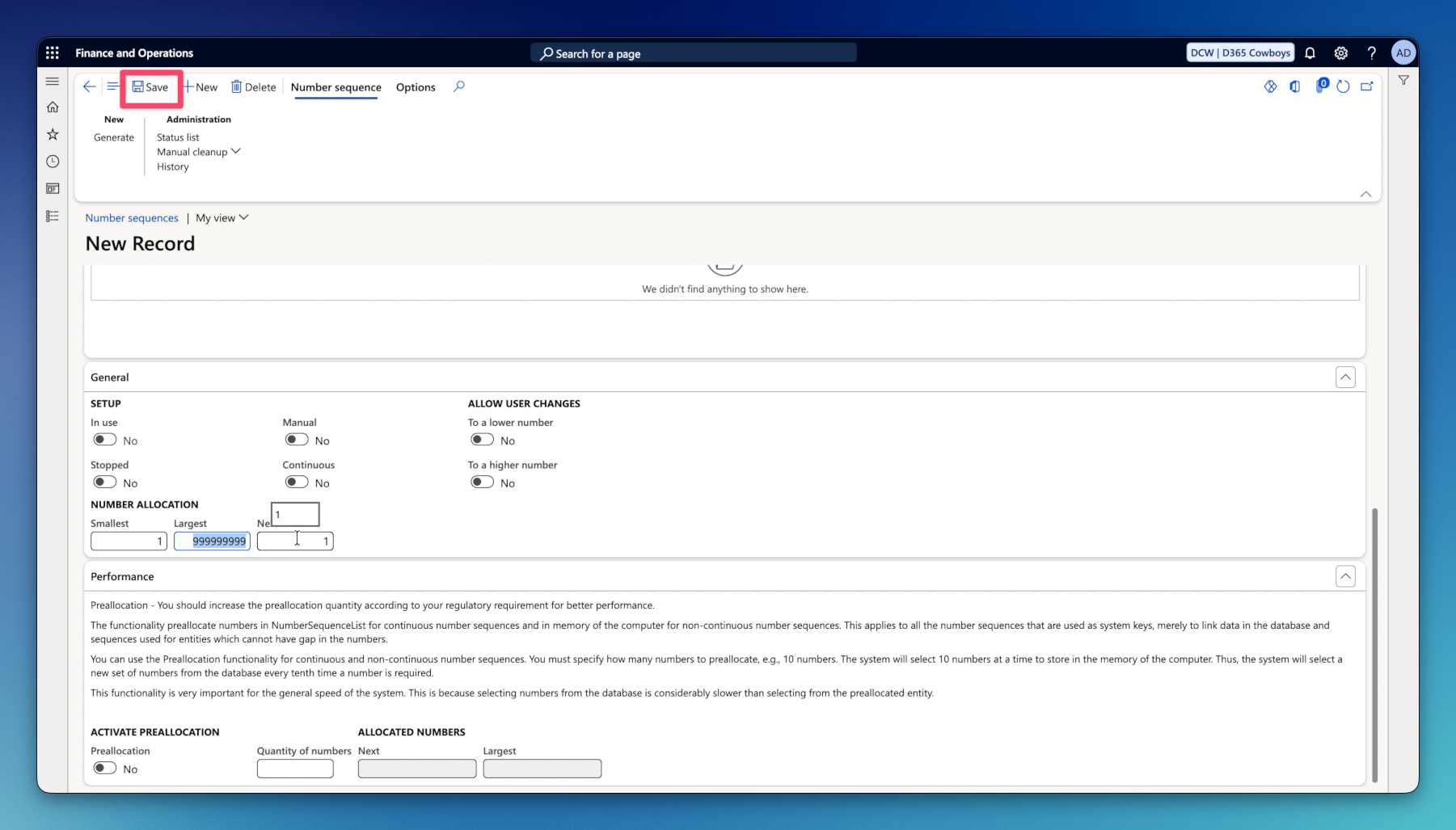
13. Click Save to confirm Number sequence creation.
14. In the ActionPane under Number sequence – Administration you can see three more options related to the Number sequence you have just created:
- Status list – inspects and manages numbers reserved or released in Continuous sequences.
- Manual cleanup – executes an immediate clean up job on the continuous status list. Runs an on demand clean-up routine to reclaim numbers from expired or aborted transactions and move them back into the free list, without waiting for the scheduled background batch job.
- History – audits configuration changes made to the number sequence record. Displays historical log entries showing modifications to sequence parameters (changes to format segments, smallest/largest boundaries, or continuous flags) including the user ID and timestamp.
How to assign a new Number Sequence?
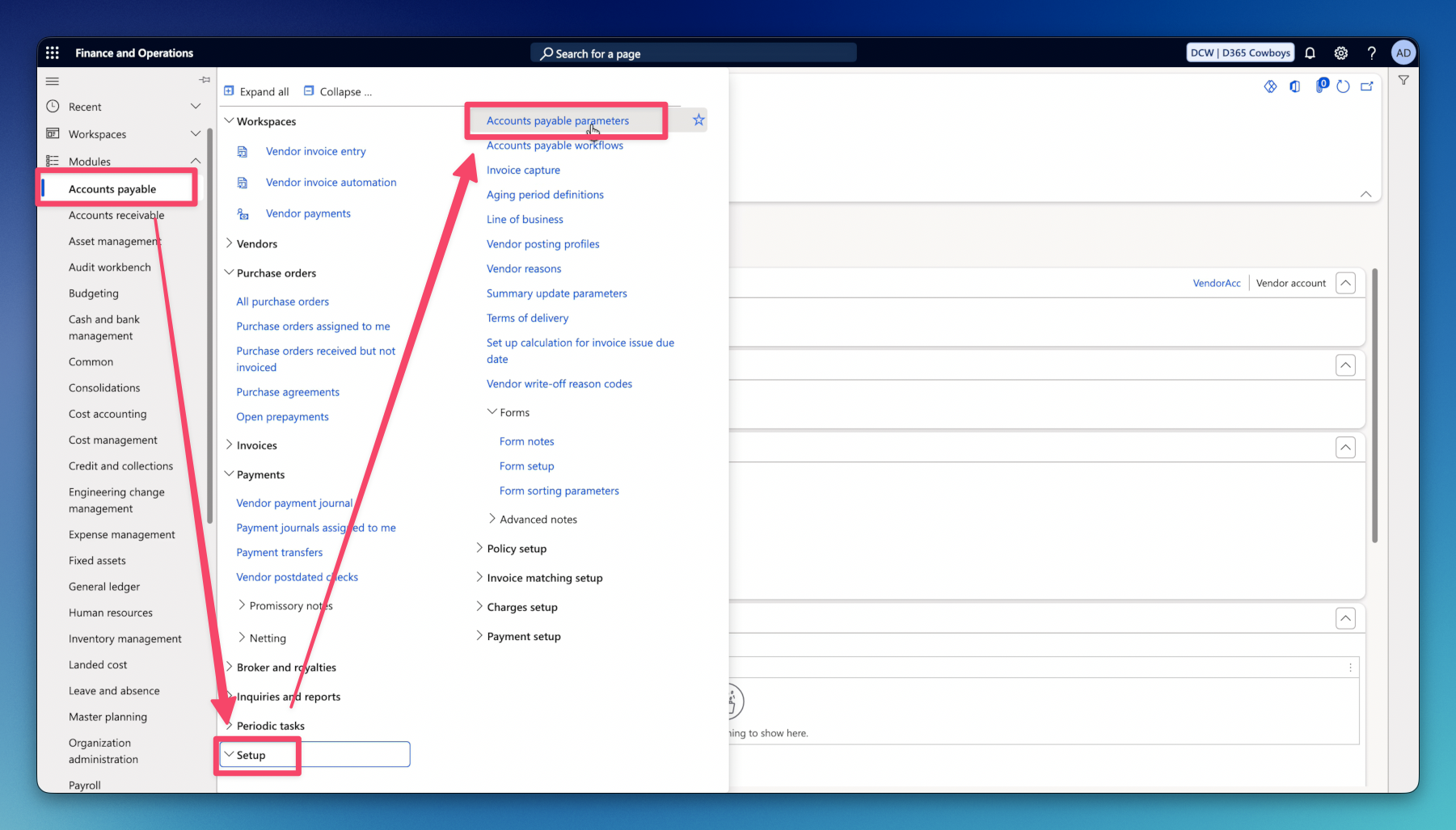
1. Go to the module that you want to assign a new Number sequence to, for example Account payable. Then, go to Account payable parameters.
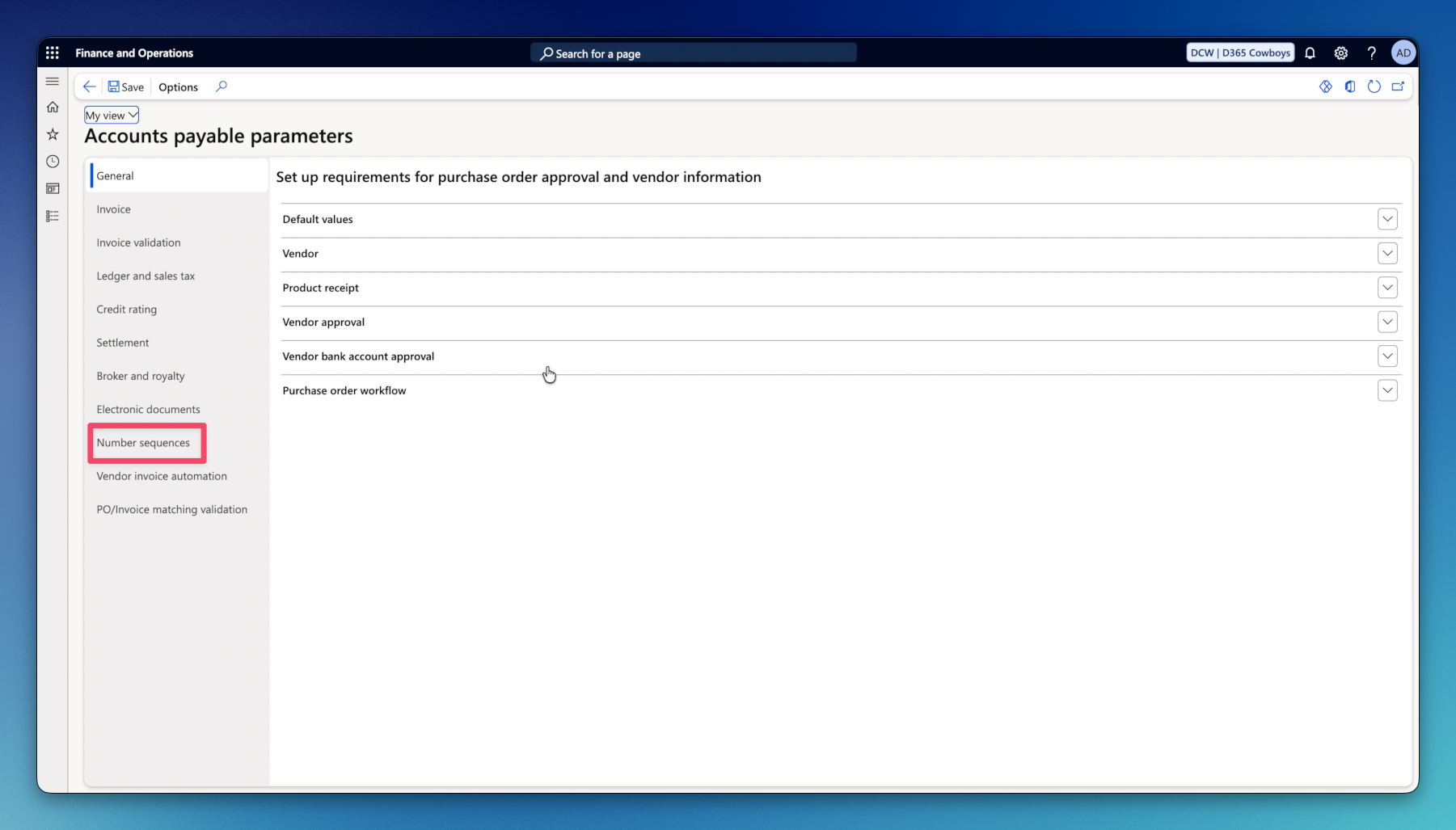
2. Click on the Number sequences tab.
3. Find the Reference that you want to assign your Number sequence to.
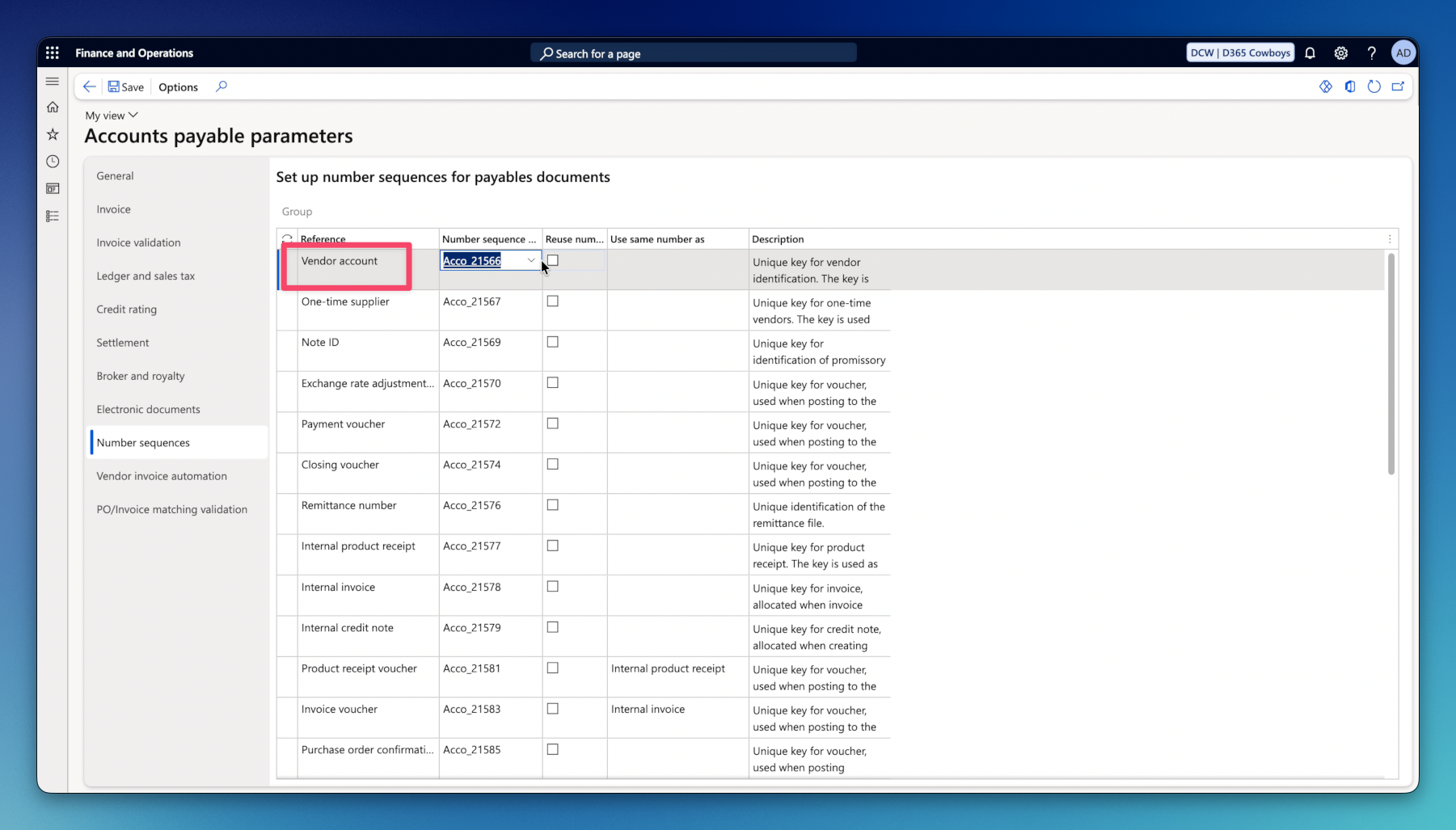
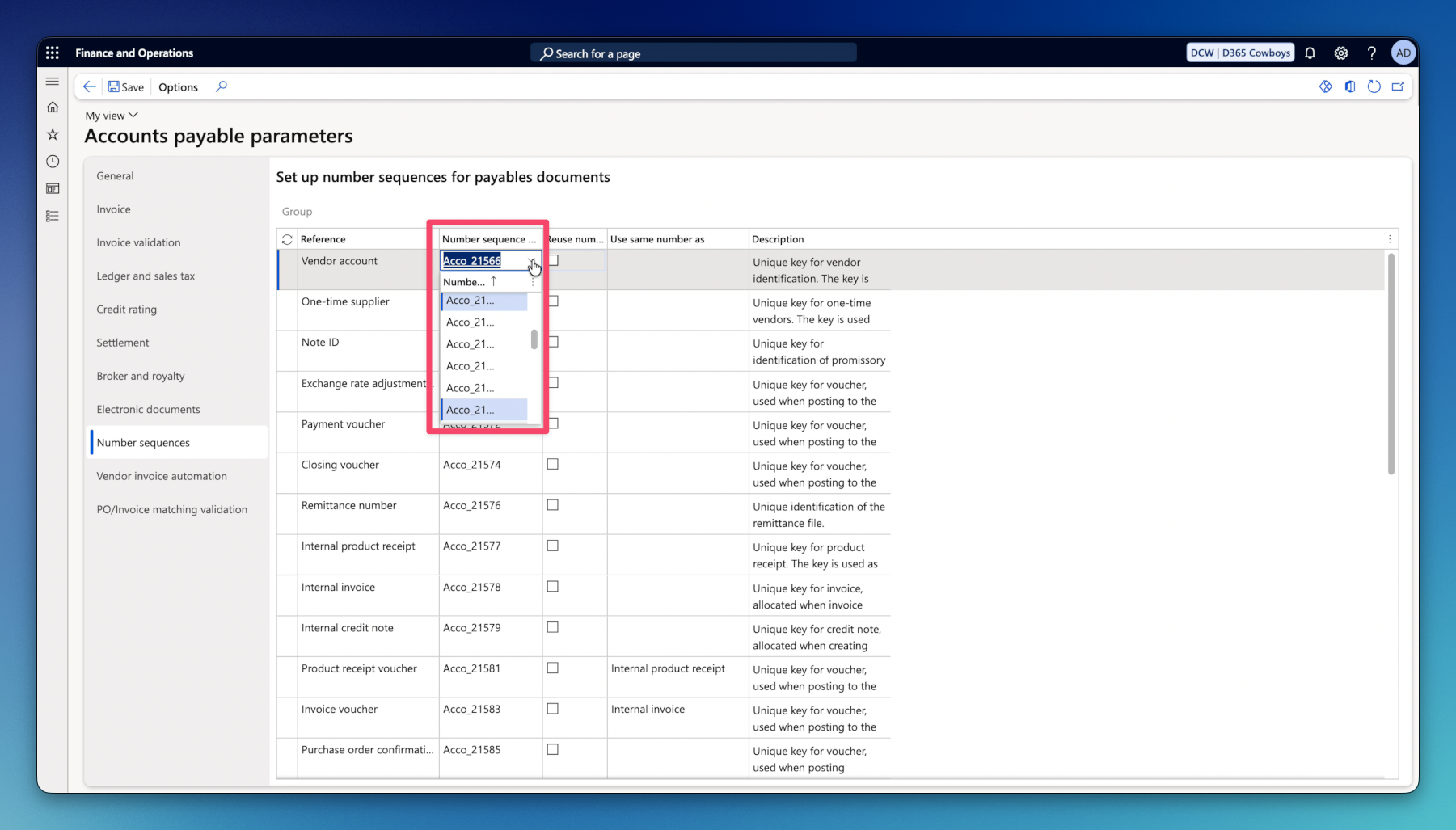
4. Click on the dropdown or type in Number sequence code.
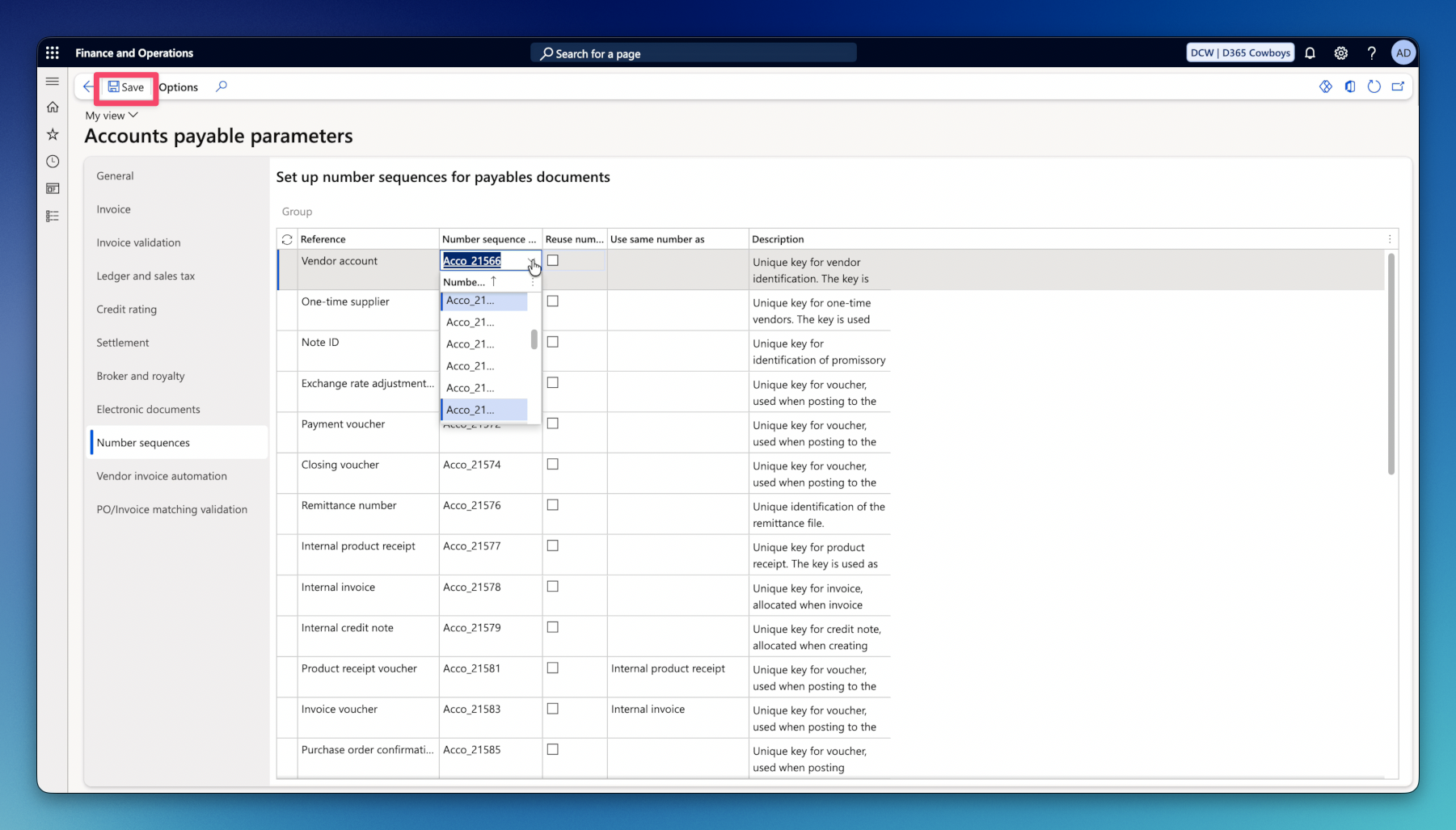
5. Click Save.
6. Alternatively, you can go to Organization administration – Number sequences – Number sequences, then Filter by your Reference number and assign Number sequence there.
I hope I helped you to create your Number sequence!